How to Deploy Effective Remote Support for Multi-Device Environments Across Your Organization

Your help desk no longer fixes one type of machine in one building. A single employee might log in from a Windows laptop, an iPhone, an Android tablet, and a home Mac in the same week. Remote work has reached 52% of the global workforce in 2026, almost double the pre-pandemic figure, and every one of those people carries devices that can break at the worst moment. Supporting that sprawl by hand drains technicians and frustrates staff. The fix is a deliberate rollout plan, not another scramble. Here is how to build remote support that covers every operating system, scales with your team, and stays secure from day one.
Key Takeaways
- Pick one cross-platform tool that supports Windows, macOS, Linux, iOS, and Android from a single console.
- Blend attended and unattended access so technicians can help live or service idle machines after hours.
- Layer zero-trust verification, encryption, and detailed logging onto every remote connection.
- Standardize onboarding, naming, and grouping before you scale past a pilot group.
- Measure resolution speed and user satisfaction by device type to prove the program works.
What Remote Support Means for a Mixed Device Fleet
Remote support is a technology that lets a technician connect to another computer or device over the internet, see its screen in real time, and take control to fix problems without traveling to the user. In a multi-device organization, that same capability has to stretch across laptops, desktops, phones, and tablets running different operating systems.
The hard part is consistency. A tool that handles Windows beautifully but ignores Android leaves a gap your staff will fall through. A clear walkthrough of the full scope of attended, unattended, and on-demand assistance can be found in this guide to remote support for multi-device environments, which is a useful primer before you compare products.
| Quick definition: Attended support happens while the user sits at the device. Unattended support lets a technician reach an idle machine, such as a server or a kiosk, with no one present. |
|---|
For a vendor-neutral background on how these tools evolved, the Wikipedia entry on remote support covers the core features, from desktop sharing to file transfer.
Why Multi-Device Support Is Now the Default
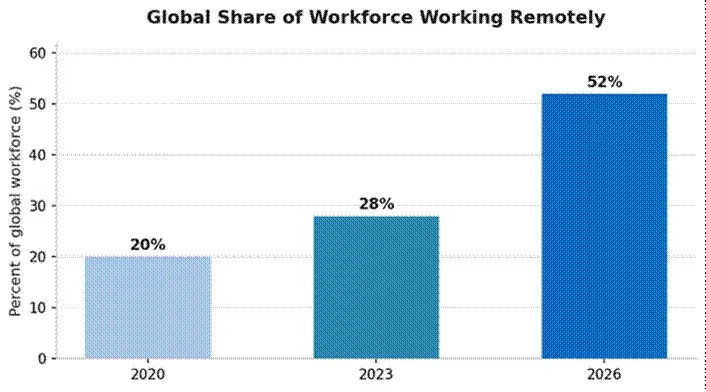
Distributed teams are no longer the exception. Hybrid models dominate, and the device count per person keeps climbing as phones, tablets, and personal laptops join the work mix.
Remote work has grown from roughly 20% of the global workforce in 2020 to about 52% in 2026.
Personal hardware is a big driver. Roughly 73% of remote employees use personal devices for work, which expands both the support load and the risk surface. Gallup also reports that hybrid workers post the highest engagement rates of any group, so the model is not going away.
Hybrid work expands the attack surface, with 45% of UK cyber incidents now traced back to remote endpoints.
That single statistic frames the whole project. More devices in more places means support and security have to be designed together, not bolted on afterward.
The same shift that pushed teams toward remote team collaboration tools is now driving demand for support that can reach those teams on any device they pick up.
How to Choose a Cross-Platform Support Solution
A cross-platform remote support tool is software that lets one technician connect to and control devices on any major operating system from a single dashboard. The right pick ends the habit of juggling a separate utility for each platform.
Features that actually matter
- Broad OS coverage: Windows, macOS, Linux, ChromeOS, iOS, and Android in one console.
- Live and idle sessions: attended help on demand plus scheduled, after-hours maintenance.
- File transfer and remote print: move logs, drivers, and documents inside the session.
- Session recording and chat: a record for audits and a channel for the user.
- Single sign-on and MFA: technician access tied to your identity provider.
Use the table below to score candidates against the needs of a mixed fleet.
| Capability | Why it matters | Priority |
|---|---|---|
| Multi-OS coverage | One dashboard instead of a tool per platform | Essential |
| Unattended access | Patches and reboots servers or kiosks after hours | Essential |
| Encryption and MFA | Protects every session from interception or hijack | Essential |
| Mobile device support | Reaches phones and tablets the workforce relies on | High |
| Per-device pricing | Keeps cost predictable as the fleet grows | High |
| Session logging | Supplies audit trails for compliance reviews | Medium |
Score each shortlisted product against these criteria before you commit.
| Pro tip: Run a two-week pilot on your three most common device types before signing an annual contract. Real sessions reveal gaps that demos hide. |
|---|
A Step-by-Step Plan to Deploy Remote Support
Deployment works best as a sequence, not a single switch. Each stage de-risks the next and gives you data to refine the rollout.
1. Audit the fleet. Catalog every operating system, device type, and ownership model, including personal hardware used for work.
2. Define access tiers. Decide which technicians can reach which device groups, and separate attended from unattended rights.
3. Pilot with one team. Deploy agents to a small group, test both live help and after-hours connections, and collect feedback for a week or two.
4. Standardize naming and grouping. Group devices by location, department, or OS so technicians find machines fast.
5. Roll out in waves. Expand department by department, training each group on how to start an attended session.
6. Measure and adjust. Watch resolution speed and satisfaction scores, then tune permissions and grouping as you scale.
If your organization already runs video meetings for collaboration, your staff are halfway up the learning curve. The same comfort with screen sharing carries over to support sessions, a point worth noting when you plan video conferencing for small businesses.
Securing Every Remote Session
Security has to wrap around remote support, because every connection is a potential entry point. The goal is simple: verify who and what connects, encrypt the traffic, and keep a record of the session.
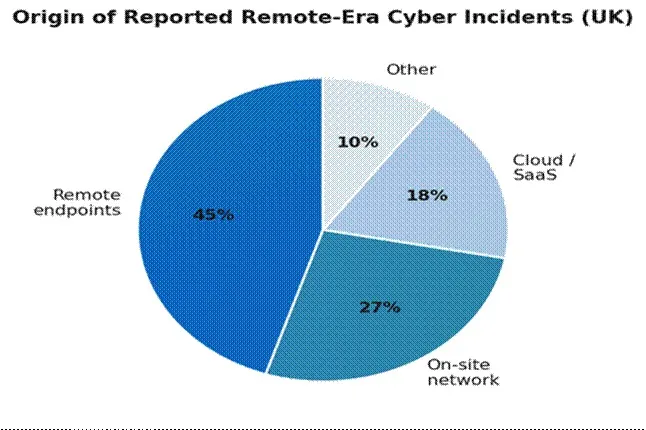
Remote endpoints account for the largest share of reported remote-era incidents in recent UK data.
Zero-trust access is the modern baseline. Instead of trusting a device because it sits inside the network, every user and device is verified before access is granted. A detailed overview of zero trust network access explains how identity checks and device posture reduce the attack surface for remote workers.
Baseline controls for support sessions
- Require multi-factor authentication for every technician login.
- Enforce end-to-end encryption on all connections, attended or unattended.
- Use role-based permissions so access matches the job function.
- Enable session logging and recording for compliance and review.
Personal devices deserve extra attention. Government guidance such as the NIST guide on telework and BYOD security lays out practical controls for protecting work data on hardware your organization does not own.
| Security note: Unattended access is powerful but leaves a standing door into a device. Restrict it to specific machines and review those permissions quarterly. |
|---|
Attended vs Unattended Support: When to Use Each
Attended support and unattended support solve different problems. Matching the method to the task keeps your team efficient and your users happy.
| Factor | Attended support | Unattended support |
|---|---|---|
| User present | Yes, in real time | No, device can be idle |
| Best for | Live troubleshooting and walkthroughs | Patching, reboots, maintenance |
| Typical devices | Staff laptops and phones | Servers, kiosks, fixed workstations |
| Timing | On demand during work hours | Scheduled, often after hours |
Most organizations need both methods working together.
A real example shows the payoff. One IT manager described supporting a hybrid team spread across several time zones, where field staff kept hitting login issues on both phones and laptops. After switching to a single cross-platform tool with unattended access, the team resolved tickets without scheduling callbacks, and after-hours patching ran on its own. As M.R. noted in a recent review, the shift cut repeat visits and freed the help desk to focus on bigger projects.
Common Pitfalls and How to Avoid Them
Most failed rollouts trace back to a handful of avoidable mistakes. Spotting them early saves weeks of rework.
- Tool sprawl: running one utility for Windows and another for Mac doubles training and licensing. Consolidate.
- Skipping the pilot: a company-wide launch with no test group magnifies every small flaw across the fleet.
- Loose permissions: giving every technician access to every device invites mistakes and audit headaches.
- Ignoring mobile: phones and tablets carry real work now, so support that stops at laptops leaves gaps.
Visual content also helps. If you produce onboarding guides or knowledge-base articles, clean screenshots and well-edited images make instructions far easier to follow and cut down on repeat questions.
Frequently Asked Questions
What is the best remote support setup for an organization with many device types?
The strongest setup uses a single tool spanning Windows, macOS, Linux, and the major mobile platforms, supports both real-time and unattended sessions, and ties technician logins to your identity system with multi-factor authentication.
Is remote support safe for personal devices used at work?
Yes, when secured properly. Apply zero-trust checks, strong encryption, and role-based access, and follow recognized BYOD guidance. These controls protect company data without forcing employees to give up their personal hardware.
What is the difference between attended and unattended support?
Attended support runs while the user is present at the device, ideal for live fixes. Unattended support reaches an idle machine with no one there, which suits patching, reboots, and after-hours maintenance on servers or kiosks.
How many devices can one technician support remotely?
It depends on the tool and ticket complexity, but unattended access and grouping let a single technician manage hundreds of endpoints. Automation for patching and reboots raises that ceiling further.
How do I measure whether remote support is working?
Track mean time to resolution, user satisfaction scores, and security incident frequency, broken out by device type. Comparing these numbers before and after rollout shows the program's real impact.
Bringing It All Together
Supporting a fleet of mixed devices comes down to three moves: choose one tool that covers every operating system, layer zero-trust security onto every session, and roll out in measured waves with real metrics behind you.
Get those right and your help desk stops chasing fires across platforms. Technicians resolve issues faster, staff stay productive wherever they work, and your security posture holds steady as the device count grows.