
10 Best PDF Editor Tools for Efficient Workflow
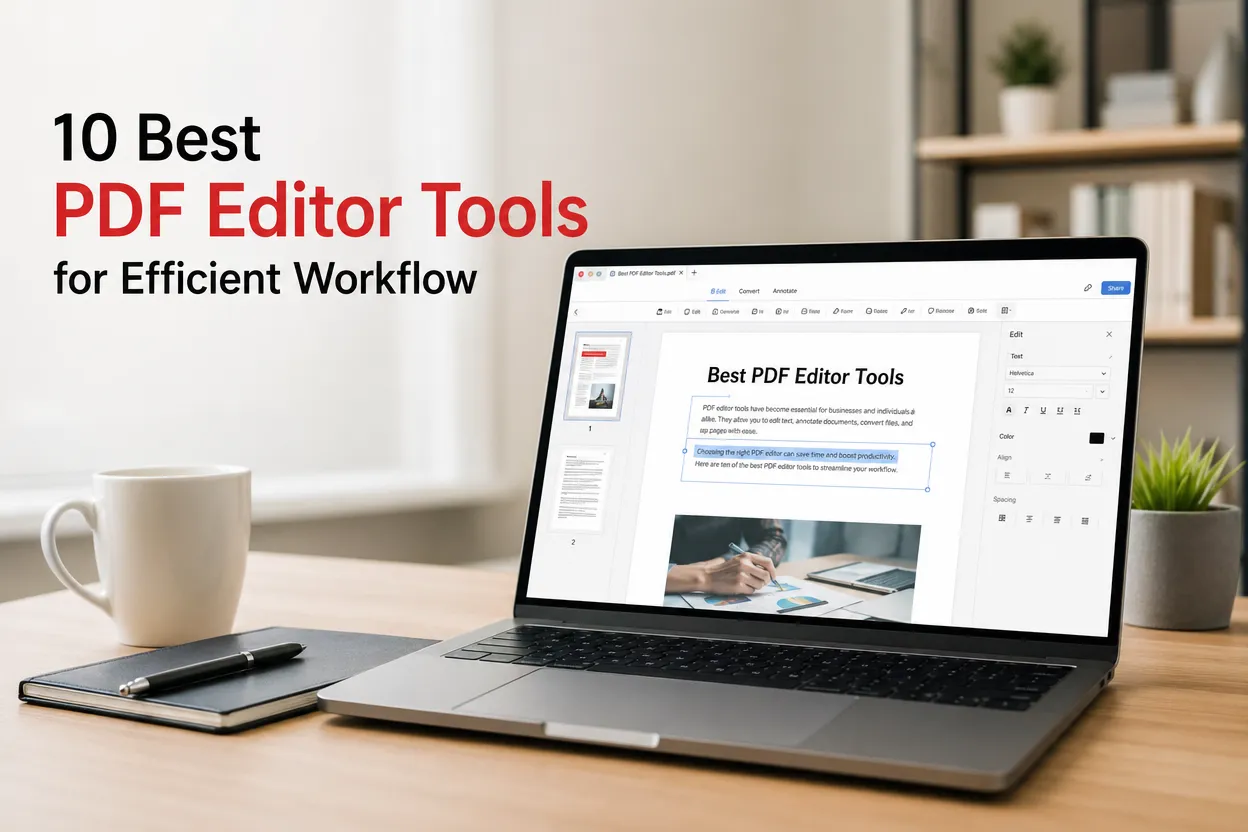
A good PDF editor saves time in small ways that add up: fixing a number in a contract without rebuilding the file, updating a fillable PDF, or leaving clear feedback instead of sending vague emails. For teams, the right editor also reduces version chaos and makes it easier to move documents from draft → review → sign-off.
Here are the top 10 tools that support efficient workflows:
1. Lumin
- What it is: A cloud-first PDF editor built for editing and collaboration in one place.
- Key features:
- Edit text directly in PDFs (fix dates, names, pricing, clauses)
- Commenting + highlighting for review cycles
- E-signatures for approvals
- Page tools (reorder, rotate, delete) to edit PDF pages online
- Support for editable PDF forms and fillable PDF workflows
- Cloud storage integration for easy access across devices
- Why it’s strong for workflow efficiency:
- Keeps edits + feedback in the same file
- Works well when documents pass between multiple people (ops, legal, finance)
- No “download → edit → reupload” loop for everyday tasks
- Best suited for:
- Teams that collaborate on PDFs regularly
- Anyone who wants an easy to use online PDF editor that still covers business basics
2. PDF-XChange Editor
- What it is: A feature-rich desktop editor with deep annotation and editing controls.
- Key features:
- Detailed annotation set (stamps, callouts, measurements, markup)
- OCR for scanned documents (turn scans into editable content)
- Image handling + object-level edits
- Document signing options
- Advanced settings for power users
- Workflow strengths:
- Strong when you need precise editing controls, not just quick fixes
- Good for technical review workflows (detailed markups and revision notes)
- Best suited for:
- Power users who live in PDFs daily
- Teams that need heavy annotation and OCR
3. Nitro PDF Pro
- What it is: A professional-grade editor commonly used in business environments.
- Key features:
- Text and layout editing
- OCR and document conversion
- Form creation and editing (useful for fillable PDF needs)
- E-signature support
- Batch actions for repetitive operations
- Workflow strengths:
- Good for document-heavy departments (HR packets, vendor docs, standard forms)
- Strong choice if you frequently convert and edit across formats
- Best suited for:
- Businesses that want a broad toolset under one platform
4. Foxit PDF Editor
- What it is: A fast editor with business-friendly features and collaboration options.
- Key features:
- Quick text and image editing
- Annotation tools for team review
- Form filling and creation
- Security controls (passwords/permissions)
- Workflow-friendly navigation (page management tools)
- Workflow strengths:
- Works well when speed matters and you edit many documents per week
- Good balance between usability and advanced functions
- Best suited for:
- Teams that need reliable editing plus security controls
5. Sejda PDF Editor
- What it is: A lightweight tool available online and as a desktop app.
- Key features:
- Basic text edits and annotations
- Merge/split and page management
- Form filling
- Simple interface for quick tasks
- Workflow strengths:
- Good for quick corrections or assembling documents fast
- Works well when you need occasional editing without a steep learning curve
- Best suited for:
- Individuals who want a straightforward editor for routine tasks
6. Smallpdf
- What it is: A popular browser-based toolkit for common PDF jobs.
- Key features:
- Merge, split, compress
- Convert between PDF and Office formats
- Basic editing and signing
- Simple upload → action → download flow
- Workflow strengths:
- Very fast for one-off tasks (compression, conversion, combining files)
- Easy to adopt across non-technical teams
- Best suited for:
- Users who need quick results from PDF editors without training
7. PDFescape
- What it is: A web-based editor focused on basic edits and form work.
- Key features:
- Simple text edits and annotations
- Create/edit form fields (useful for editable PDF forms)
- Merge documents and manage pages
- Browser-first workflow
- Workflow strengths:
- Solid for form completion and light document updates
- Useful when you need a simple PDF editor without installing software
- Best suited for:
- Users primarily working with forms and quick edits
8. Able2Extract Professional
- What it is: A conversion-first PDF tool built for extracting content accurately.
- Key features:
- High-quality conversion to Word/Excel/PowerPoint
- OCR for scanned PDFs
- Table extraction and layout preservation
- Editing after conversion (where needed)
- Workflow strengths:
- Great when your “editing” is really “extract → edit in Office → reuse”
- Strong for finance/reporting workflows where tables must survive conversion
- Best suited for:
- Users who make frequent PDF-to-Office conversions as part of their workflow
9. PDFelement
- What it is: A general-purpose editor with a broad feature set.
- Key features:
- Text and image editing
- Conversion tools
- Forms (create + fill)
- OCR options
- Signatures and page tools
- Workflow strengths:
- Good all-rounder when you want one tool for most tasks
- Works well for small teams that need editing + forms + conversion
- Best suited for:
- Small businesses needing a cost-effective, broad toolset
10. Litre PDF
- What it is: A lightweight editor for basic editing and markup needs.
- Key features:
- Simple edits and annotations
- Basic form filling
- Merge and page management tools
- Workflow strengths:
- Easy for simple tasks without extra complexity
- Works when your workflow needs are minimal and consistent
- Best suited for:
- Users who only need basic editing and occasional document cleanup
Final Thoughts
All ten tools can handle core PDF tasks, but they support different workflow styles. Some are best for quick browser-based fixes, others for deep desktop editing, and others for conversion-heavy work.
If your documents move between multiple people — with edits, comments, and approvals happening quickly — Lumin is often the easiest option to keep everything in one place without juggling versions. For more specialized needs (heavy OCR, deep annotation, or extraction), the other tools on this list can be a better fit depending on how your team works.